September 22, 2026

4 min
Read

You already keep the work in Workiom. The lists are set up, the automations run, the permissions are how you want them. What you do not have is a way to ask your own data a question in plain language and get a real answer back.
That is what Workiom MCP is for. It connects your AI assistant, whether that is Claude, ChatGPT or another tool that supports MCP, to your workspace. It reads your lists and works with your records, all through your own key and your own permissions. The examples here use Claude, and it works the same way in the others.
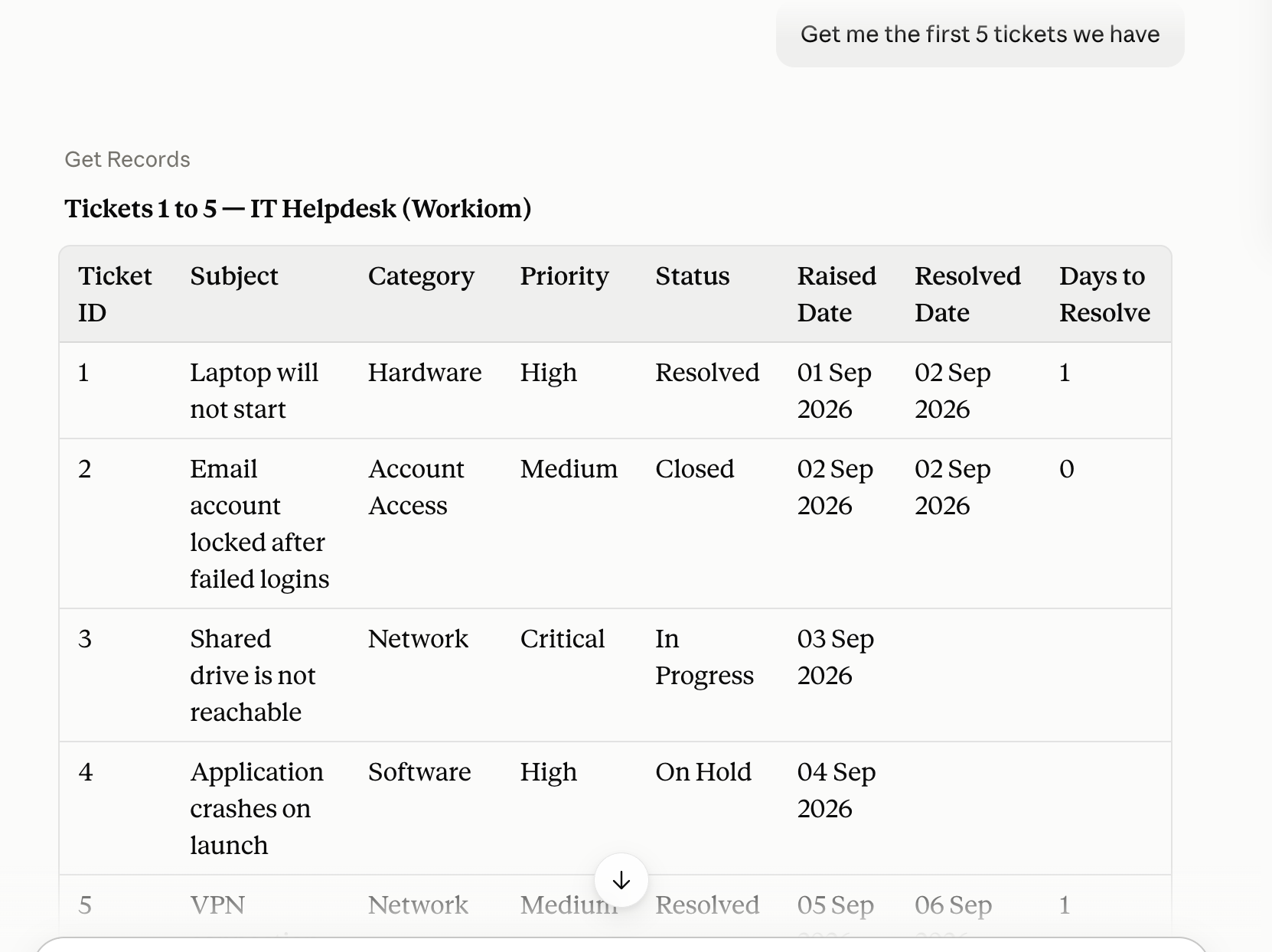
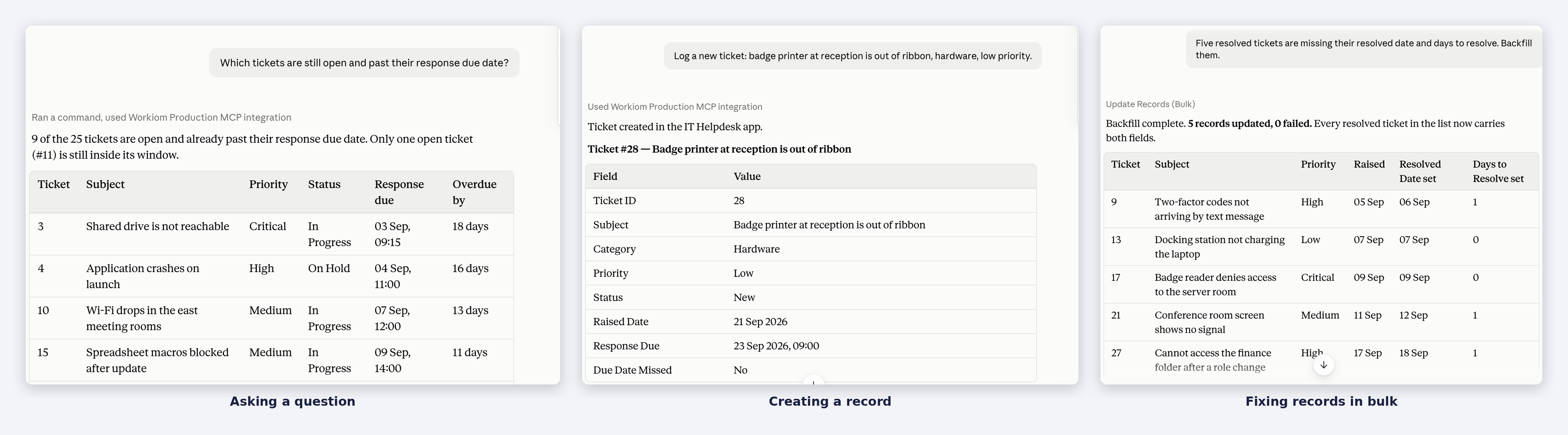
You stop exporting things. You want last month's closed deals grouped by source. You used to build a report, filter it, maybe drop it into a spreadsheet to get the grouping right. Now you ask, and the numbers come live out of your workspace.
You stop doing bulk work by hand. Three hundred records with the wrong region label. A batch of tickets that all need reassigning. An import where every phone number arrived with a leading space. That used to be an afternoon. Now it is a sentence and a confirmation.
You start building. More on that at the end.
There is no syntax. You type the way you would talk to a colleague who happens to have your workspace open.
"List every account with no activity in the last 30 days, sorted by contract value."
"Create a support ticket for the issue I just described and assign it to the infrastructure team."
"In my Contacts list, every phone number imported last week has a leading space. Strip it."
"Compare this month's ticket volume to last month and tell me which category grew most."
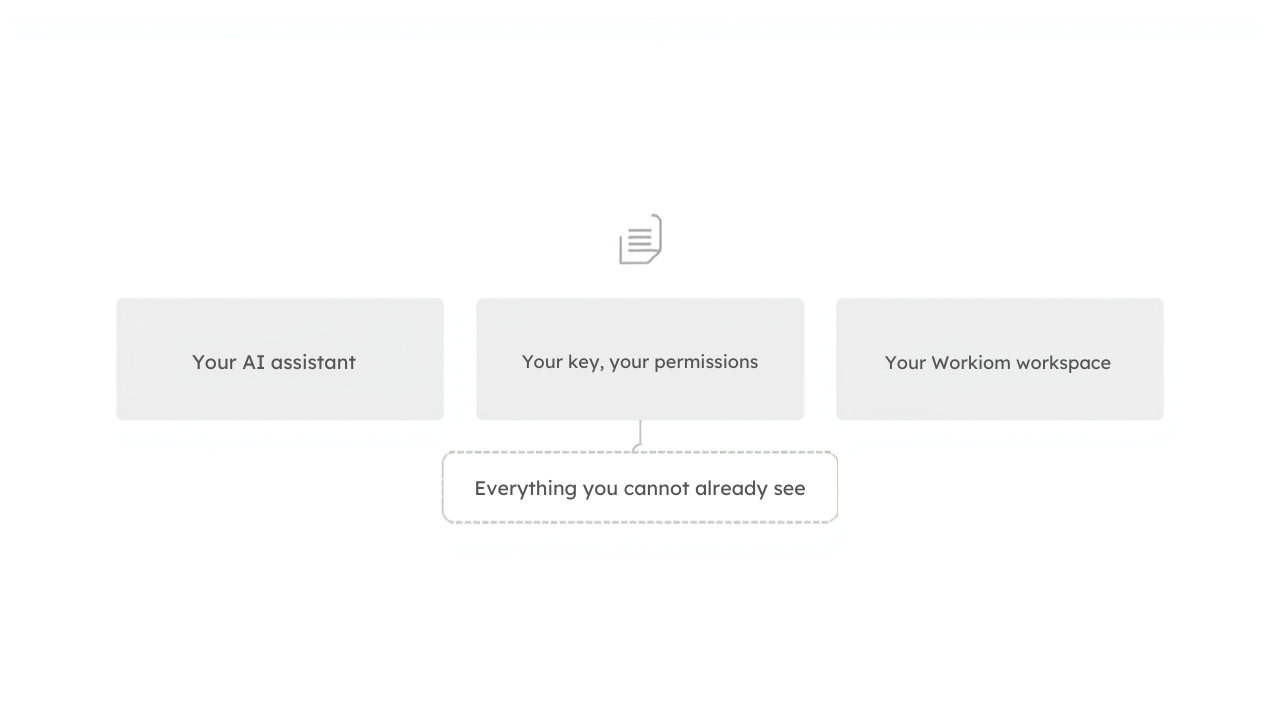
The connection runs on a key you create inside your own workspace. It carries your permissions and nothing beyond them. A list you cannot open is a list your assistant cannot open. It cannot reach another workspace, and it cannot see fields your account is not allowed to see.
You can end it at any time. Delete the key and access stops immediately, with nothing to undo on the assistant side. Anyone else on your team who wants the same thing creates their own key, and their connection carries their permissions rather than yours.
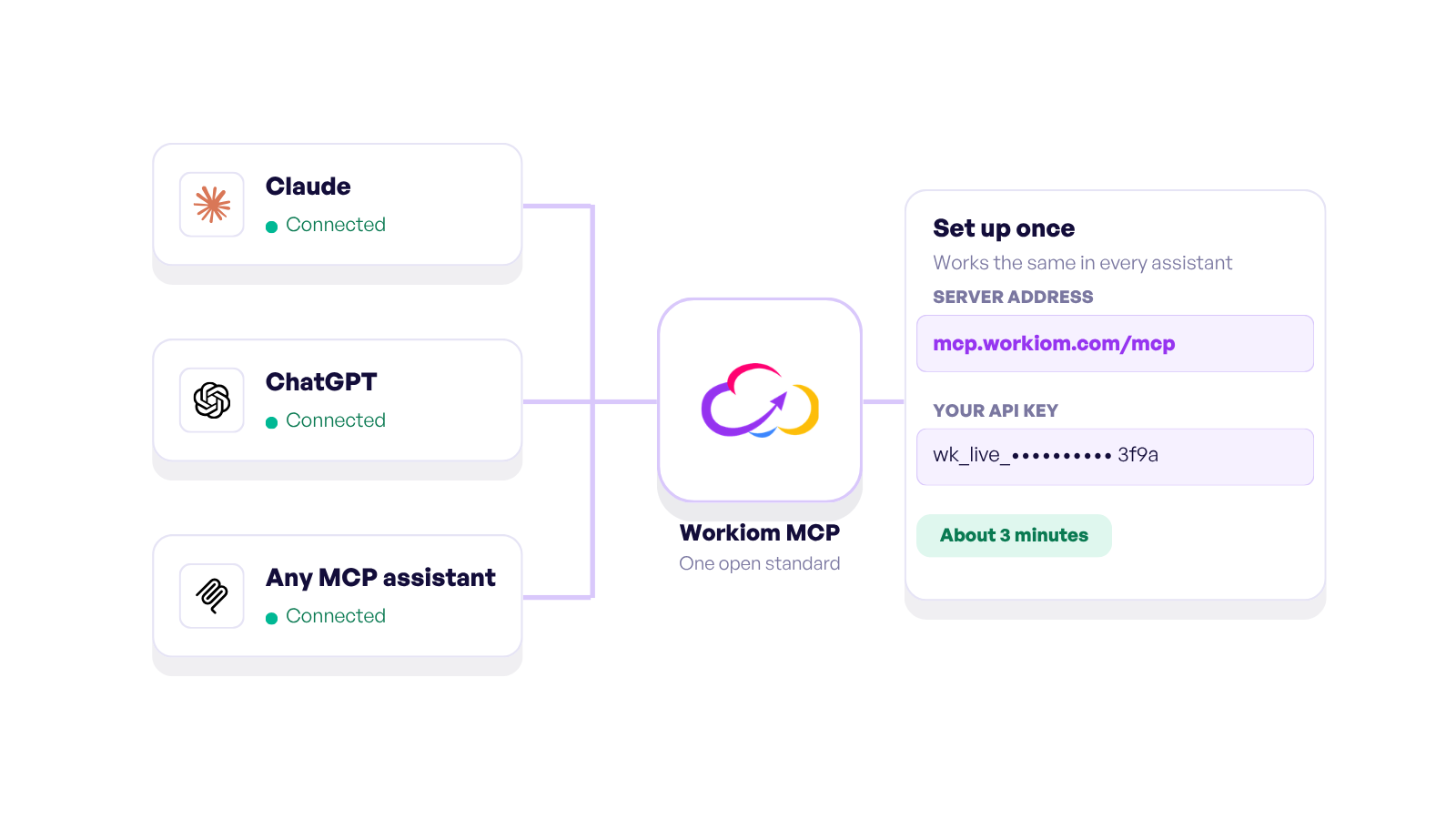
Workiom MCP follows an open standard, so the same address and the same key work in Claude, ChatGPT and any other assistant that supports it, with the same permissions in each. Our team has it running in both. Use whichever one your team already lives in.
About three minutes, once:
The full walkthrough, with the address to paste, is in Connecting Workiom to your AI assistant. Want to build Interfaces as well? Install the Workiom plugin for Claude instead. It includes this same connection: Adding the Workiom plugin.
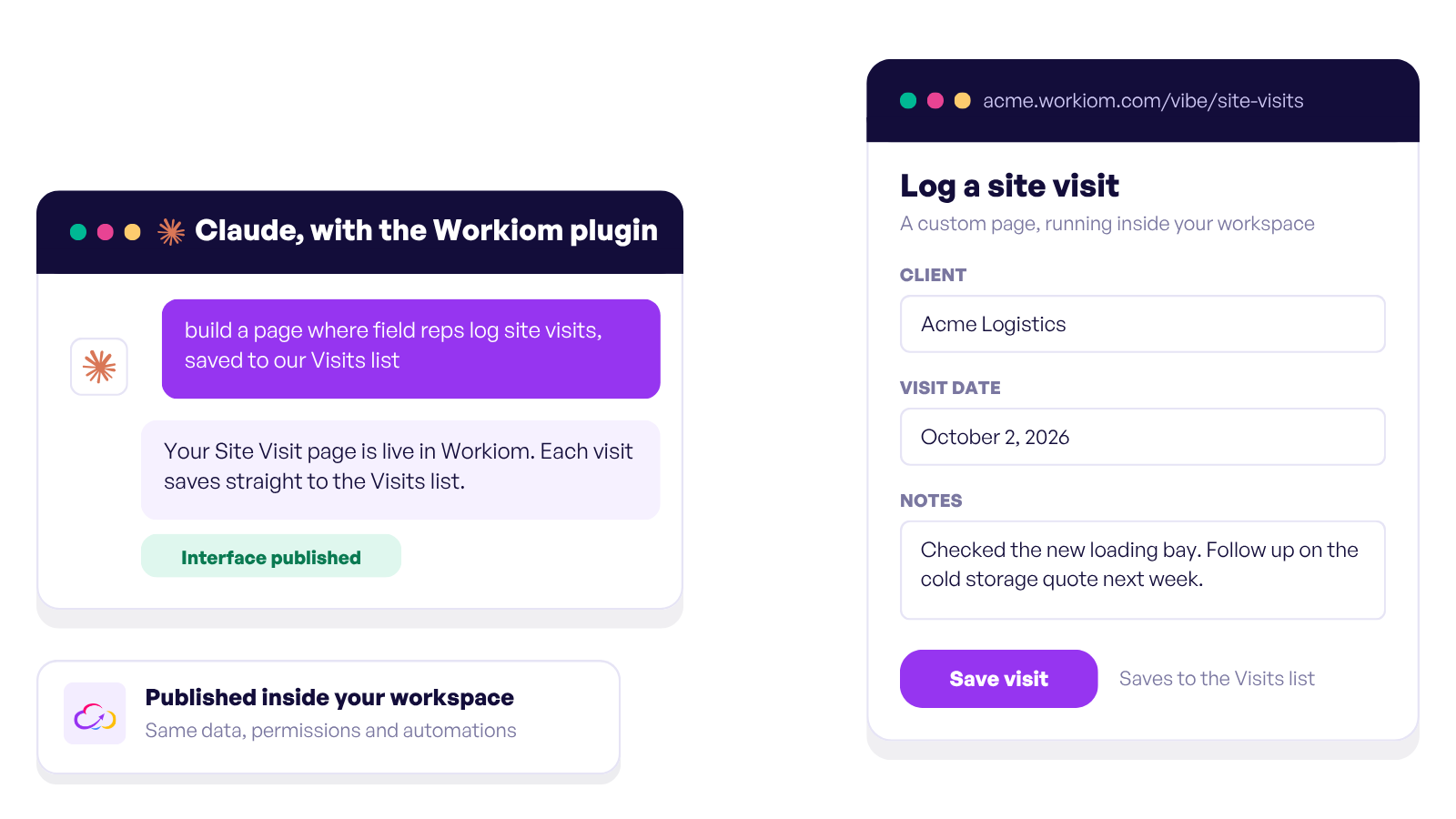
Once your assistant can read and write your workspace, it can build on top of it. Interfaces are custom pages that live inside your workspace, built by describing what you want. A ticket form for staff who should never see the list behind it. A client portal. A clean summary screen for leadership. Same data, same permissions, a face made for the person using it. Building Interfaces works through the Workiom plugin for Claude.
That is its own story.
Do not start with the most important process you own. Connect it, then ask one question you already know the answer to and see whether it gets it right. That takes two minutes and tells you more than any demo.
Then ask it something you were not looking forward to doing by hand.
Does Workiom MCP work with ChatGPT? Yes. It works with any assistant that supports MCP, including Claude and ChatGPT, using the same address and key.
Which Workiom plans include it? Every plan. Anyone with a Workiom account can create their own key and connect.
Can my assistant see everything in Workiom? No. It sees only what your own account can see, and nothing in other workspaces.
How do I turn it off? Delete the API key in Workiom. Access stops immediately.
Already using Workiom? Connect it now. New to Workiom? Start a free trial.





.svg)
.svg)