March 29, 2026

6 min
Read

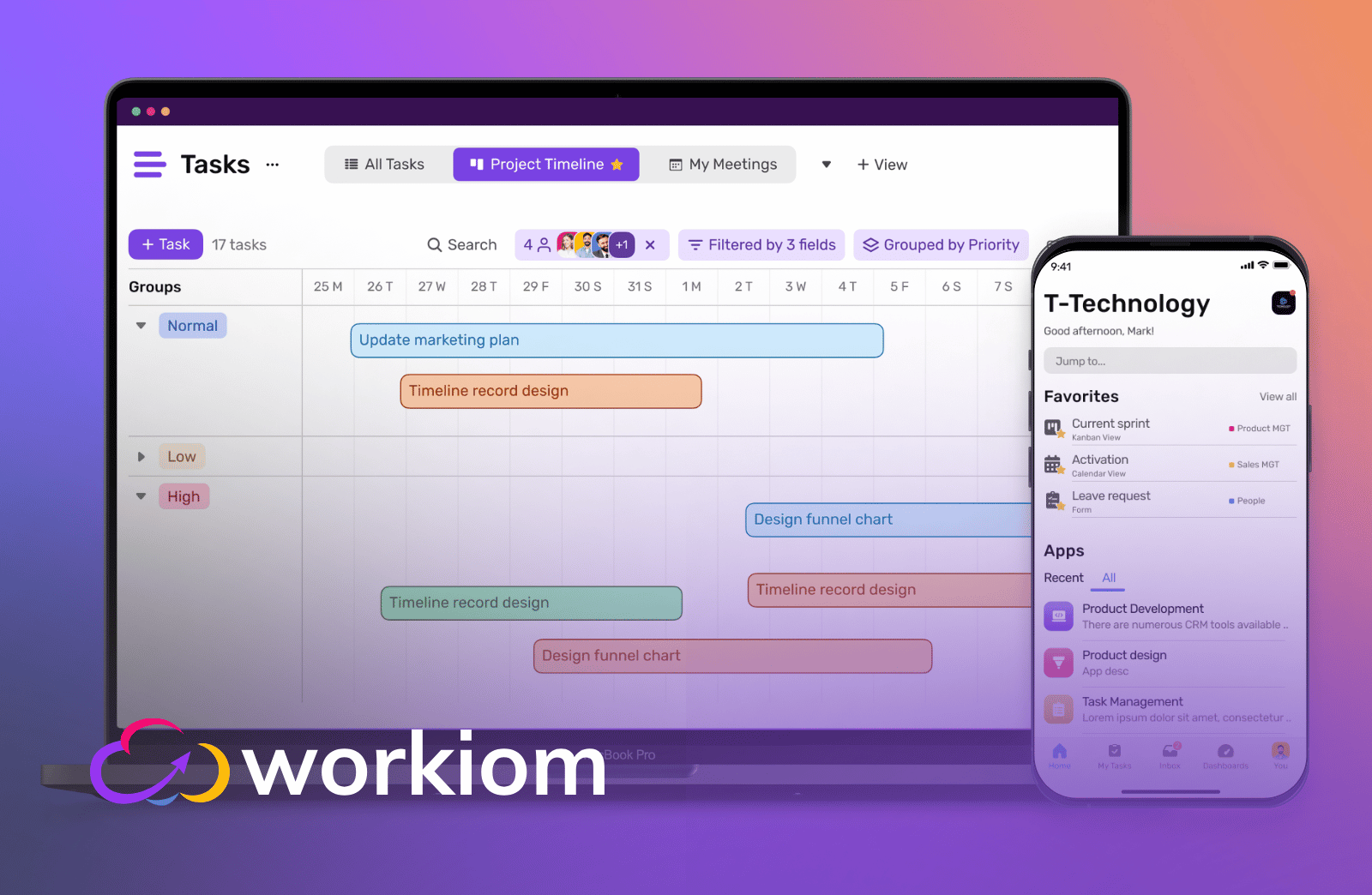
In complex, fast-paced work environments, managing personal tasks across multiple projects, departments, or client accounts can be difficult.
Workiom's My Work dashboard offers a centralized and customizable workspace that helps users stay focused on their own responsibilities. Instead of jumping between different lists and workspaces, users get a single, personalized view of their workload.
Whether you are a product manager, team leader, or operations coordinator, learning how to personalize task views in Workiom allows you to automate task tracking without code, reduce distractions, and prioritize what truly matters.
The My Work dashboard is a personal task management interface that brings together all items assigned to you across every workspace you are part of. It provides a unified view of your active tasks, filtered by criteria such as due dates, status, or priority.
Unlike shared project boards, My Work is focused on the individual user. It pulls tasks from lists where you are included in designated assignment-related fields, regardless of the workspace structure.
This personalized workspace offers the following benefits:
Tasks appear in your My Work dashboard when:
Workiom is flexible with field names and labels. Whether your workspace uses "Task Owner," "Responsible," or "Assigned To," the My Work system can be configured to recognize your role and collect those items accordingly.
Customizing the My Work dashboard helps reduce overload and improve clarity. Here are practical steps to tailor the view to your role:
My Work supports multiple visual layouts:
For team leads or coordinators working across time zones, the Calendar or Gantt view can help visualize local and global delivery timelines more effectively.
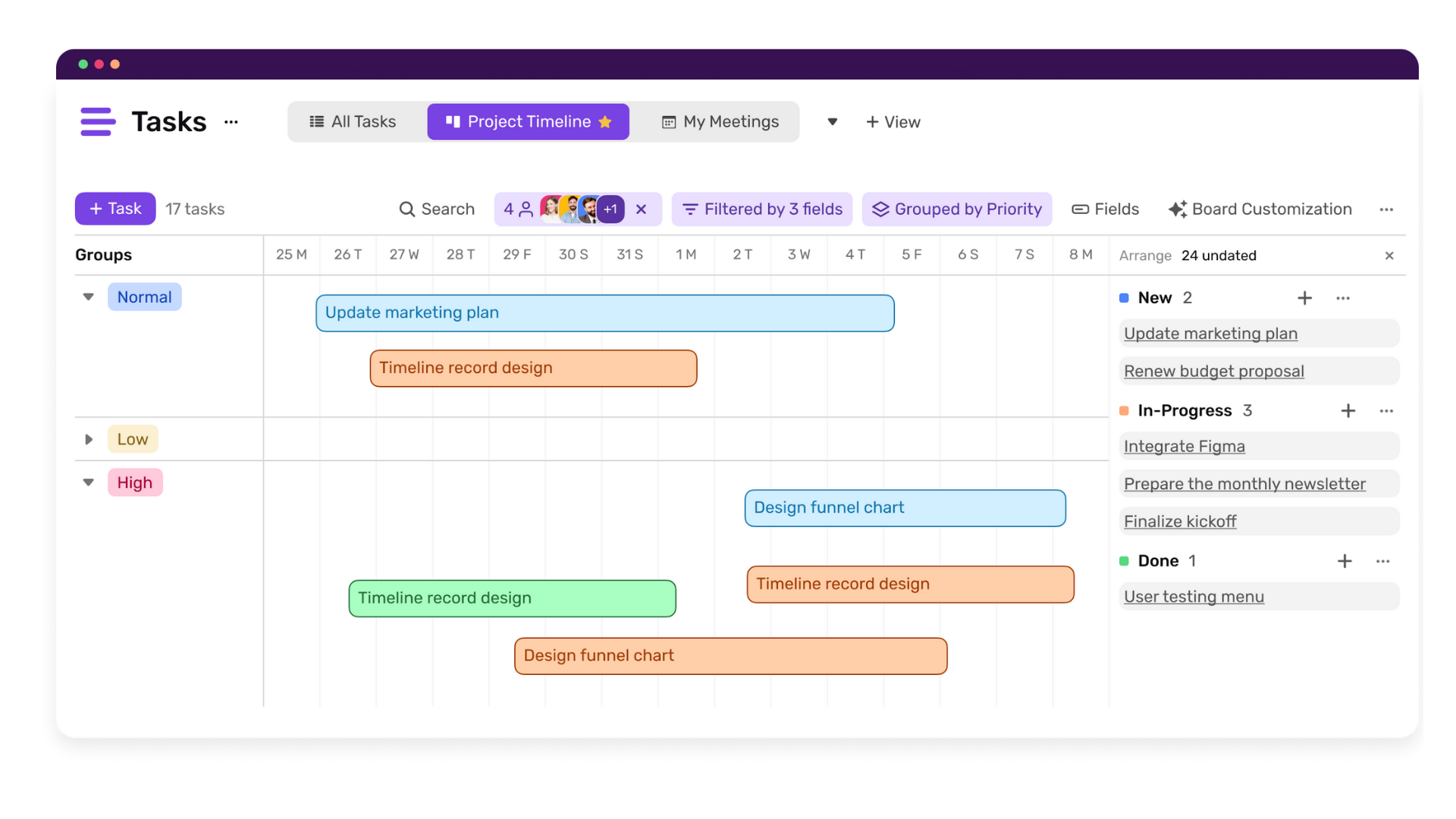
You can narrow your task list by using filters such as:
Once configured, filtered views can be saved and reloaded as needed, helping you switch between workflows easily. For example, you might have a saved view for “Internal Projects” and another for “Client Deliverables.”
In Table view, you can drag columns to reorder them and hide fields that are not relevant. This is especially helpful if you want to:
%20(2).png)
Yes. Workiom’s built-in automation engine allows task updates to flow into your My Work dashboard automatically. Here are examples of useful automations:
These automations can be created without coding using conditional logic and structured branching flows. You can also integrate with platforms like Zapier and Make.com, or use webhooks to sync task events with tools like Slack, Gmail, or Microsoft Teams.
If you are part of more than one workspace, My Work automatically collects all assigned tasks into one place. This is useful for:
Workiom allows grouping tasks by workspace, list name, or status, giving you flexibility to organize according to your role.
For example, a program manager could group tasks by region or team, while a product owner might group tasks by feature or development phase.
For teams operating across countries and time zones, My Work can be personalized to enhance collaboration:
Conditional permissions and role-based access can further limit visibility to only relevant information, avoiding clutter for users who are part of global programs.
To keep the My Work dashboard useful and uncluttered, consider the following practices:
Task overload is one of the most common productivity challenges for cross-functional teams. A personalized task view reduces the noise and surfaces only what matters to the individual user.
With Workiom’s My Work dashboard, each team member gets a customized, dynamic interface that evolves with their role, project load, and company structure. Unlike static to-do lists, My Work pulls live data from shared systems and presents it in a way that’s clear, filterable, and actionable.
The My Work dashboard in Workiom is not just a convenience feature. It is a strategic productivity layer that allows professionals to take control of their workload, streamline communication, and reduce operational friction.
By combining a no-code task management platform with custom filters, views, and automations, users can confidently manage complex workflows across multiple teams and time zones, all from one personalized space.
To explore how to configure your own dashboard, review:
Let your workspace work for you. Build once, personalize endlessly.
Contact us or start your free trial today and see how Workiom helps your team stay focused with personalized task views and smarter work management.
The My Work dashboard is a personalized task view that collects all items assigned to you across multiple workspaces.
You can customize views using filters, layout options such as Kanban or Calendar, and column visibility settings.
Yes. My Work automatically gathers tasks assigned to you from different lists, projects, and workspaces.



.svg)
.svg)