March 8, 2026

6 min
Read

Have you ever ended your workday only to realize a critical task was left unfinished simply because no one got a reminder?
If this sounds familiar, you’re not alone. Many teams lose precious time chasing updates, sending manual reminders, and following up on overdue tasks. This problem gets worse when your team is spread across time zones or juggling multiple projects.
That’s why we built Workiom’s no-code automation engine, so you can spend less time micromanaging and more time getting work done.
In this guide, we’ll show you exactly how to automate your task tracking in a way that’s easy, flexible, and tailored to your team, no coding skills required.
By the end, you’ll know how to:
When you rely on people to manually update statuses, set reminders, and track deadlines, things inevitably fall through the cracks. Emails get lost. Spreadsheets go stale.
With Workiom, we replace these manual steps with automated flows that run in the background. Once you set them up, they work every time, consistently, accurately, and without extra effort.
Automations in Workiom start with triggers, events that set a workflow in motion. You can choose from several types, depending on what you want to automate:
Each trigger becomes Step 1 in your automation flow. From there, you build actions based on the type of workflow you want to run.
Let’s walk through a common use case: updating the task status automatically when a team member completes a checklist item or marks a phase as done.
Use the List Builder to create a task list with the following fields:
Each list in Workiom has its own Automation Listing Page, where you can:
Click “Add Automation” from your task list’s automation page.
Select Record Updated as the trigger. Choose the Checklist field as the monitored field.
Pro tip: You can also use a Time Trigger to follow up on tasks close to their due dates.
Use the "Build Condition" flow to define when the automation should run. Example:
You can use Else flows to define fallback actions if the conditions aren’t met.
Add an “Update Record” action. Set the Status field to "Completed".
Use Field Mapping (Static or Dynamic). For calculated values, use a Formula field combined with the Update Record action.
Optional: Add another action to set a Completion Date using TODAY () in a formula field.
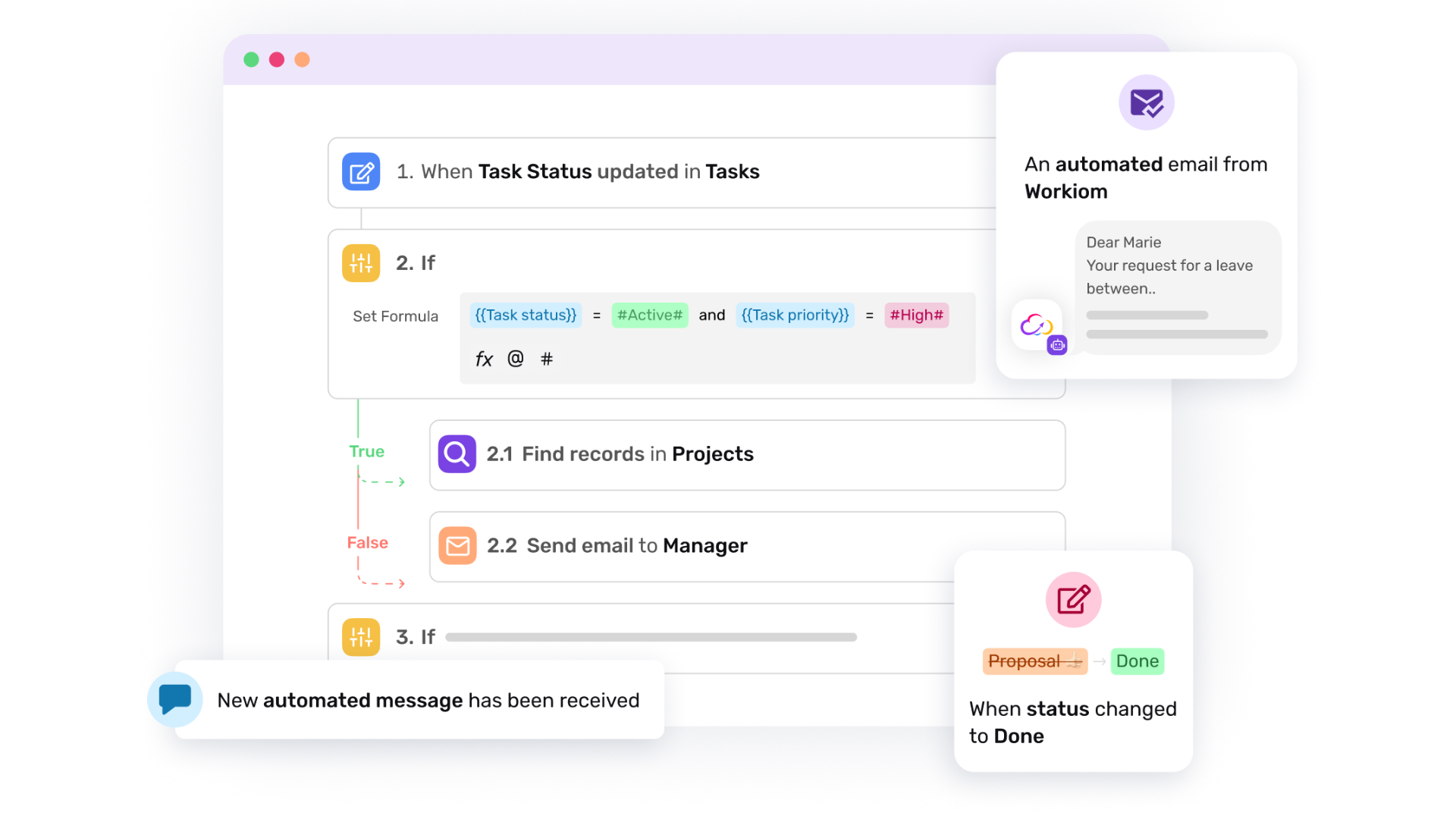
Once status updates are automated, you can also use Workiom’s Notify User and Send Email actions to keep your team informed in real time.
Craft a custom message using Workiom’s Text Body builder:
“Task ‘{Task Name}’ is due tomorrow and is still in progress. Please review before [Due Date].”
Use dynamic field mapping (Text + Field) for a personalized message.
Automation is only as good as your ability to monitor it. In Workiom, you can track automation execution via:
Create a Team Task Health dashboard with:
Link this dashboard to specific lists and use real-time data to monitor trends across your team or department.
If your workflow requires daily standups, weekly reviews, or monthly check-ins, use the Recurring Trigger.
This kind of automation is ideal for distributed teams, ensuring task visibility across time zones without micromanagement.
Yes. Workiom supports conditional logic, parallel flows, and webhooks for advanced use cases.
This level of flexibility makes Workiom a powerful workflow automation tool, without requiring technical knowledge or engineering support.
To keep your automation ecosystem clean and reliable:
With just a few clicks, you can automate task tracking without code in Workiom, making your workflows smarter, faster, and more reliable. From status updates to time-based reminders and personalized alerts, Workiom’s automation engine turns repetitive tasks into streamlined processes.
Whether you're managing remote teams, running customer operations, or overseeing product delivery, this level of automation allows you to focus on what matters: execution, not micromanagement.
Explore Workiom templates, review the automation documentation, or start building your own workflow today, no technical skills required.
Contact us or start your free trial today and see how Workiom helps your team automate task tracking and stay on top of every deadline.
You can automate task tracking by using triggers, conditions, and actions in Workiom’s workflow automation engine.
Common triggers include record creation, record updates, due-date reminders, and recurring schedules.
Yes. Workiom automations can notify users, send emails, or update records automatically when workflow conditions are met.




.svg)
.svg)